

Generate an image
Write a prompt in the node’s prompt bar, pick your settings, and click Run. Name the subject, the setting, the visual style, and the lighting: specific prompts give specific results.
Reach for
1K when you’re drafting and iterating, and 4K when you need a crisp final output with detail to spare.
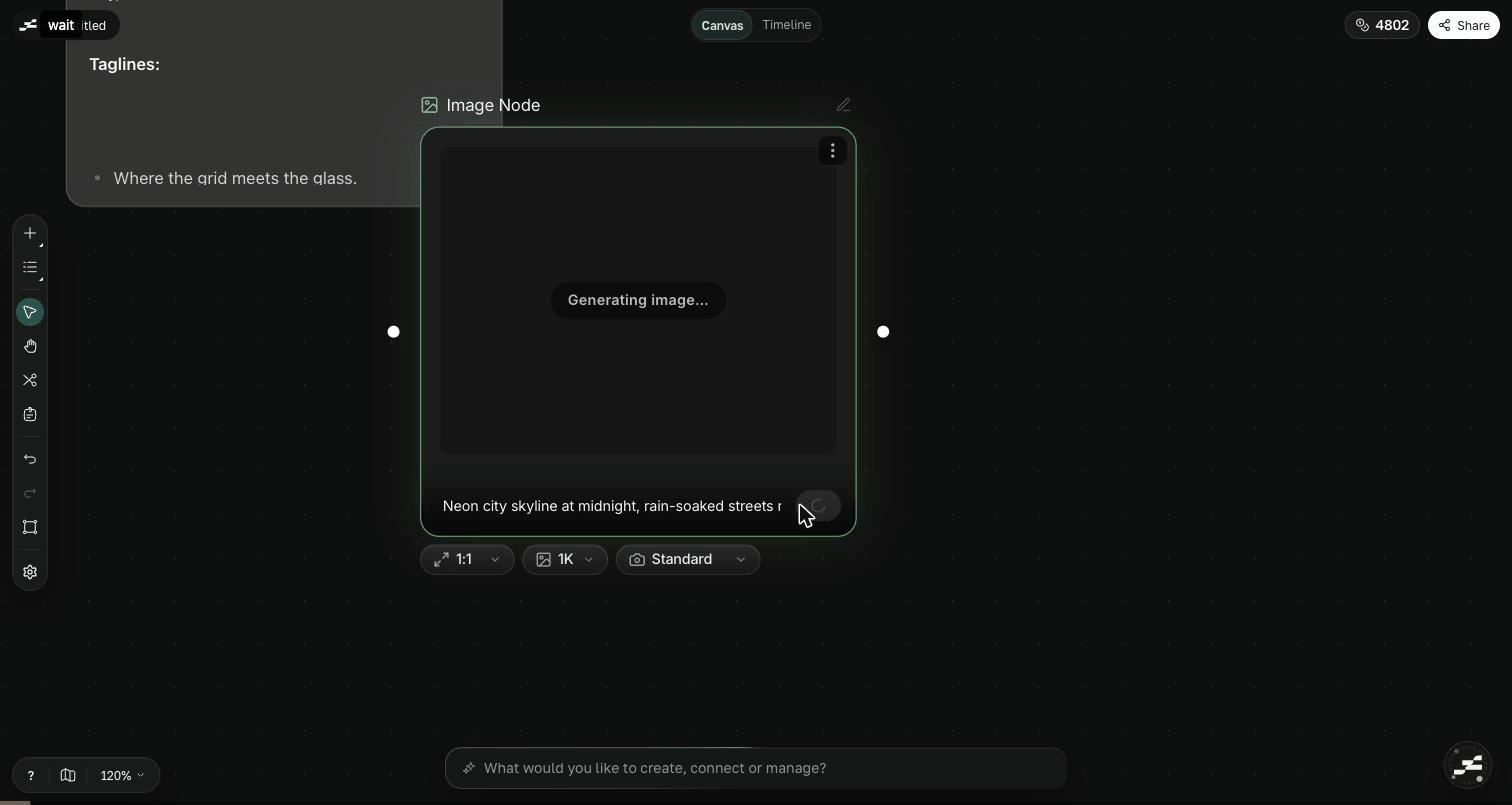
An Image node: drop or upload a reference, write a prompt, and set aspect ratio and resolution before you Run
Reference images
Connect other Image nodes, generated or uploaded, as references, and describe in the prompt how to use them. References keep characters, products, and color palettes consistent across generations, and they’re how you do image edits: connect the source image, then prompt the change you want.Modes
The Image node has two generation modes:- Standard. The normal path: text-to-image, image edits, and reference-conditioned generation.
- Photobooth: connect a reference image of a product or subject, and the node generates a set of commercial photoshoot template variations from it. Add a text prompt to steer the direction. Photobooth needs the connected image first: a prompt alone won’t run.