

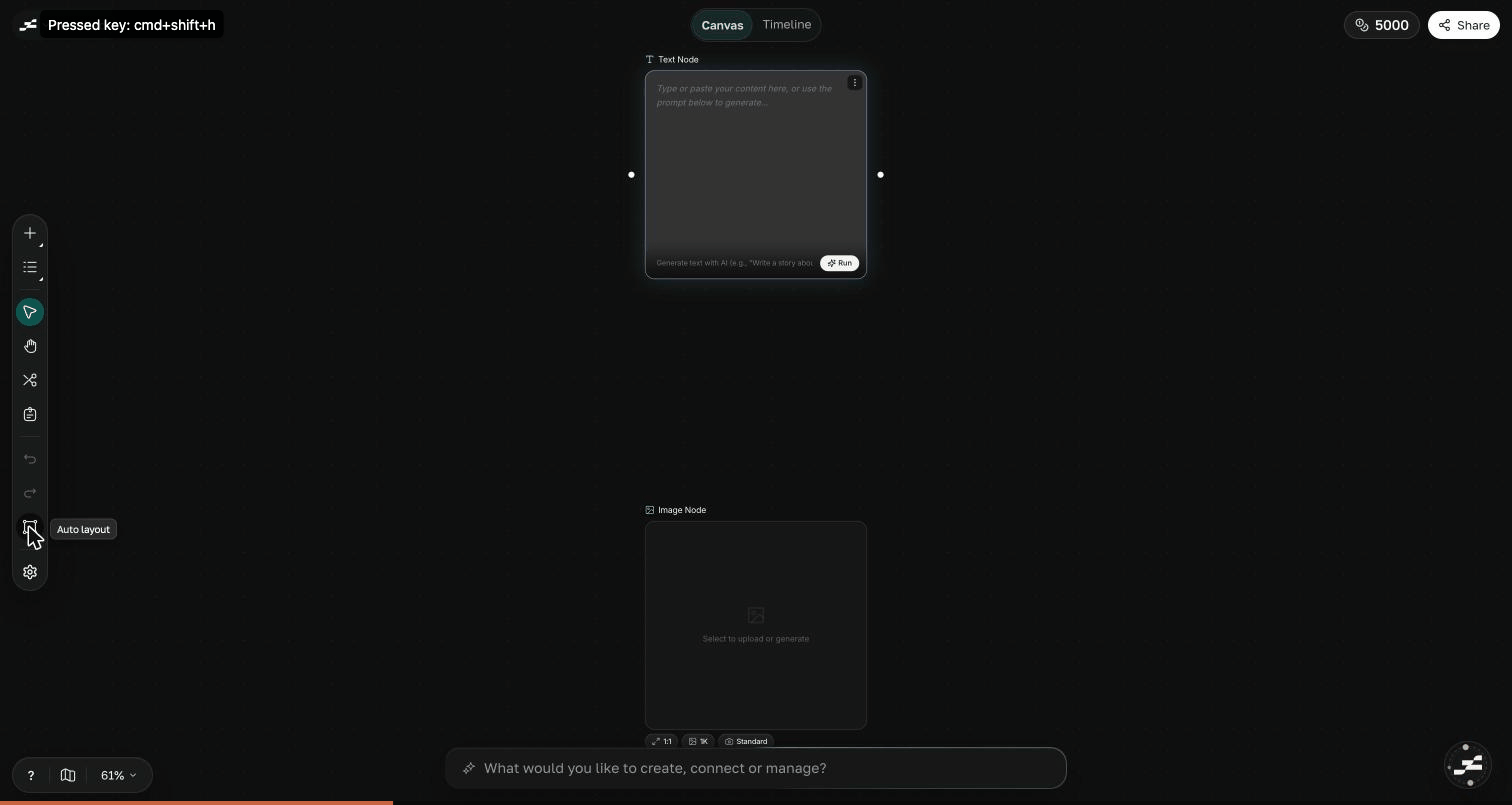
The canvas editor: left toolbar, infinite node surface, Canvas/Studio pill up top, and the Flowy AI dock along the bottom
The node surface
The infinite board fills your screen. Pan and zoom freely, spread work across as much space as you need, and connect a node’s output to another node’s input to pass results downstream. See Navigation & Selection for every way to move around, and Nodes for what you can place here.Left toolbar
A vertical rail on the left edge holds the Add a node menu, the select, pan, cut, sticky note, and group tools, undo and redo, auto layout, and preferences. The Canvas Toolbar page walks it top to bottom.Node inspector
Select a single node and the inspector opens along the right edge with that node’s full editable controls: model, settings, versions, and a credit estimate for the next run. The node itself keeps a compact summary so the board stays readable.Flowy AI dock
The pill at the bottom of the canvas, “Describe what you want to generate…”, expands into the Flowy AI composer. Above it, a row of quick actions suggests one-click prompts that change with your selection. Submitting a prompt opens the full chat panel, where the assistant plans and builds on the canvas for you. Learn more in AI Assistant.Header
Across the top of the editor:- Project pill (left): the project name and menu; click the name to rename it.
- Canvas / Studio pill (center): switches between the node canvas and the Studio timeline, where you refine a Composition and export video.
- Search (⌘ K): the command palette. Run project actions, switch modes, reopen recent projects, or type to jump to any node on the canvas by its title or prompt.
- Generation activity: a live chip that appears while generations run, with a count and per-item progress.
- Credits: your workspace credit balance.
Bottom-left controls
A small pill in the bottom-left corner toggles the minimap and shows the current zoom level. Click the percentage for zoom presets: in, out, 100%, fit, and zoom to selection.Keep exploring
Nodes
Meet every node type you can create and connect.
Image Tools
Upscale, inpaint, remove backgrounds, and more.
AI Assistant
Plan and build the canvas with Flowy AI.
Quick Actions
One-click prompts that adapt to your selection.