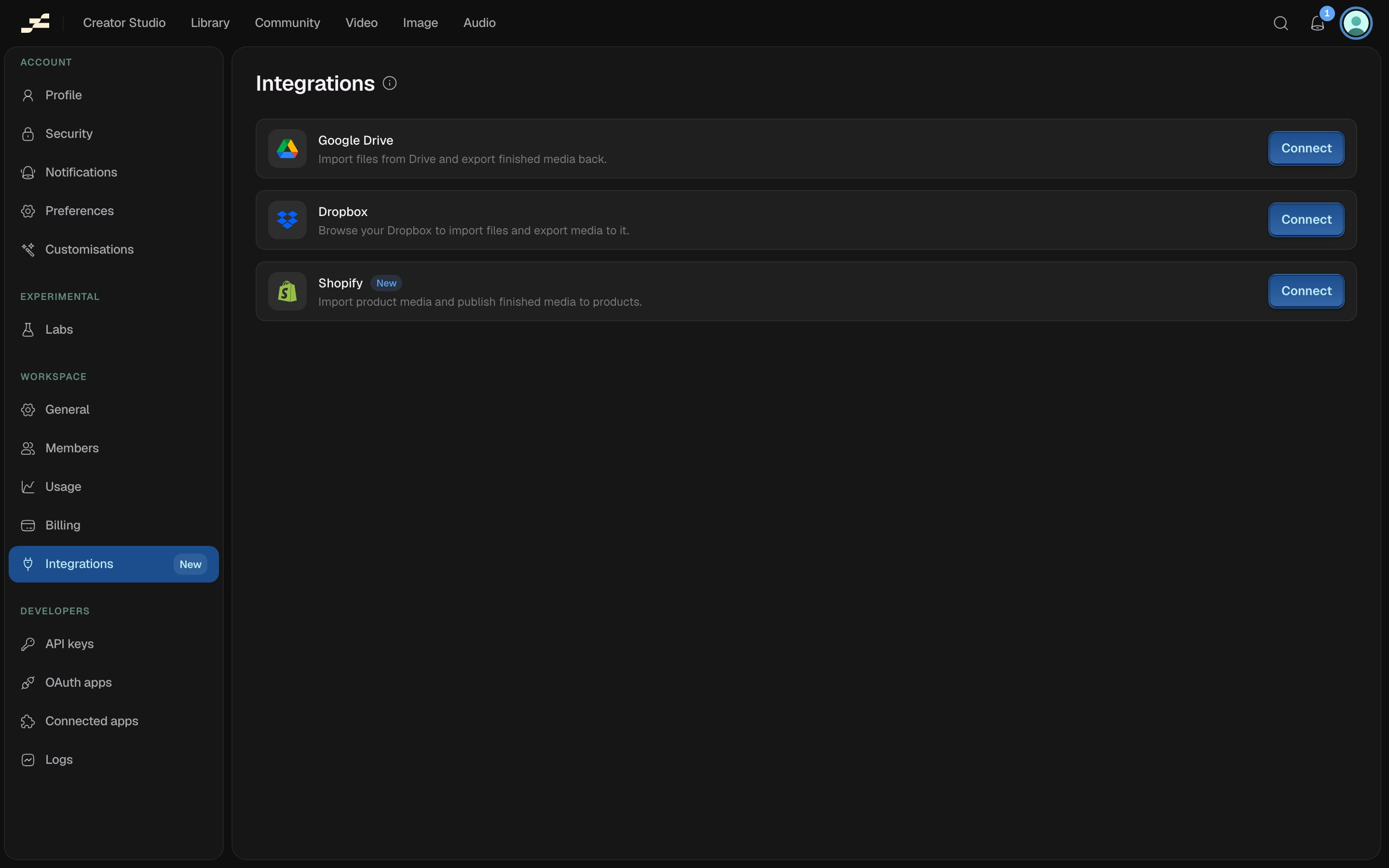
Find third-party connections under Workspace → Integrations in the settings sidebar. A connection belongs to the whole workspace. Connect an account once, and every member can import from it and export to it. See Integrations overview for what importing and exporting actually do.
Connect a provider
Click Connect on a provider's row
Google Drive and Dropbox open a popup to their consent screen.
Approve access
Finish the consent or install step in the popup window.
Connected
The row updates to Connected and shows the connected account.
If your browser blocks the popup, allow popups for Flowy and try again.
Row states
- Connected: the account is linked; shows who it’s connected as.
- Needs attention: the connection errored or was revoked on the provider’s side. Reconnect to fix it.
- Not configured: this provider isn’t available on your workspace; Connect is disabled.
Disconnect a provider
Click Disconnect on a connected row and confirm. Flowy immediately loses access to that account. Any imports or exports using it stop working until you reconnect. Last modified on August 29, 2026