> ## Documentation Index
> Fetch the complete documentation index at: https://docs.tryflowy.ai/llms.txt
> Use this file to discover all available pages before exploring further.
# Core Concepts
> The mental model behind Flowy: workspaces, projects, nodes, generations, and the two editors.
export const DemoVideo = ({src, poster, caption, aspectRatio = "16 / 10", className = ""}) => {
return
{caption &&
{caption}
}
;
};
Flowy is built around one idea: every piece of content is a node on a connected canvas, and connections carry context from one step to the next. Once these building blocks click, the rest of the product follows naturally.
## Workspaces and projects
A **workspace** is the top-level container: it holds your projects, your teammates, and your credit balance. A **project** lives inside a workspace and holds one canvas. You can belong to several workspaces — one for yourself, others for teams — and switch between them from the rail on the left edge of the dashboard. See [Workspaces](/collaboration/workspaces) for roles and invites.
## The canvas
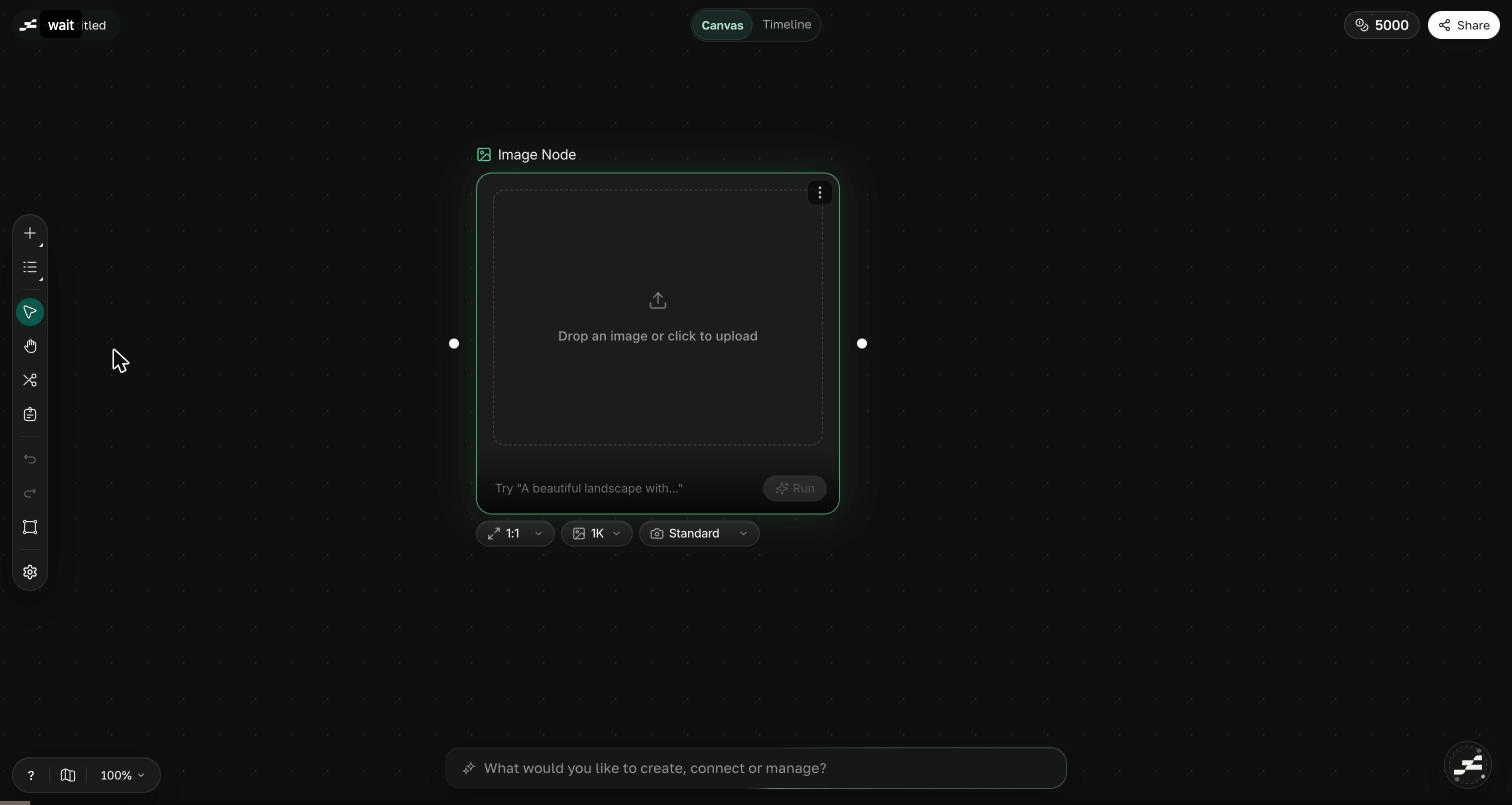
The [canvas](/canvas/overview) is your primary editor, and it never runs out of room. You pan and zoom across an infinite surface, drop in nodes wherever they make sense, and zoom out to see the whole piece of work at once. Opening any project lands you here.
## Nodes and connections
A **node** is the basic unit of the canvas. Each one holds a piece of content — [Text](/canvas/nodes/text), [Image](/canvas/nodes/image), [Video](/canvas/nodes/video), [Audio](/canvas/nodes/audio), and more — along with the prompt and settings that produce it.
Connections are how context flows. You wire one node's output into another node's input, so an image can feed a video, and that video can feed a composition. Chains like this are what make the canvas more than a grid of one-off generations — each step builds on the last. Browse the full catalog in the [nodes overview](/canvas/nodes/overview).
## Generations
A **generation** is one run of a node: Flowy sends your prompt and any connected inputs to an AI model and renders the result inside the node. Generations aren't destructive — rerun a node as many times as you like to explore variations.
## Canvas vs Studio
Flowy has two editors that work together. **Canvas** is the node graph where you generate assets and branch through ideas. **Studio** is the timeline editor where you compose those assets into a finished, exportable video — trims, layers, effects, and audio. You move between them with the mode switch at the top of the editor. Start in [Canvas](/canvas/overview), finish in [Studio](/studio/overview).
## Credits
Generating content spends credits from your workspace's balance. The lifecycle is predictable: credits are *reserved* when a generation starts, *deducted* on success, and *refunded* automatically if it fails — you never pay for a failed run. See [Credits](/billing/credits) for costs and top-ups, and [Plans](/billing/plans) for what each tier includes.
Ready to put the model to work? Follow the [Quickstart](/getting-started/quickstart) to build your first image-to-video chain.
 Connections are how context flows. You wire one node's output into another node's input, so an image can feed a video, and that video can feed a composition. Chains like this are what make the canvas more than a grid of one-off generations — each step builds on the last. Browse the full catalog in the [nodes overview](/canvas/nodes/overview).
## Generations
A **generation** is one run of a node: Flowy sends your prompt and any connected inputs to an AI model and renders the result inside the node. Generations aren't destructive — rerun a node as many times as you like to explore variations.
## Canvas vs Studio
Flowy has two editors that work together. **Canvas** is the node graph where you generate assets and branch through ideas. **Studio** is the timeline editor where you compose those assets into a finished, exportable video — trims, layers, effects, and audio. You move between them with the mode switch at the top of the editor. Start in [Canvas](/canvas/overview), finish in [Studio](/studio/overview).
## Credits
Generating content spends credits from your workspace's balance. The lifecycle is predictable: credits are *reserved* when a generation starts, *deducted* on success, and *refunded* automatically if it fails — you never pay for a failed run. See [Credits](/billing/credits) for costs and top-ups, and [Plans](/billing/plans) for what each tier includes.
Connections are how context flows. You wire one node's output into another node's input, so an image can feed a video, and that video can feed a composition. Chains like this are what make the canvas more than a grid of one-off generations — each step builds on the last. Browse the full catalog in the [nodes overview](/canvas/nodes/overview).
## Generations
A **generation** is one run of a node: Flowy sends your prompt and any connected inputs to an AI model and renders the result inside the node. Generations aren't destructive — rerun a node as many times as you like to explore variations.
## Canvas vs Studio
Flowy has two editors that work together. **Canvas** is the node graph where you generate assets and branch through ideas. **Studio** is the timeline editor where you compose those assets into a finished, exportable video — trims, layers, effects, and audio. You move between them with the mode switch at the top of the editor. Start in [Canvas](/canvas/overview), finish in [Studio](/studio/overview).
## Credits
Generating content spends credits from your workspace's balance. The lifecycle is predictable: credits are *reserved* when a generation starts, *deducted* on success, and *refunded* automatically if it fails — you never pay for a failed run. See [Credits](/billing/credits) for costs and top-ups, and [Plans](/billing/plans) for what each tier includes.