> ## Documentation Index
> Fetch the complete documentation index at: https://docs.tryflowy.ai/llms.txt
> Use this file to discover all available pages before exploring further.
# Canvas Overview
> Learn the anatomy of the canvas editor so every tool is one glance away.
export const DemoVideo = ({src, poster, caption, aspectRatio = "16 / 10", className = ""}) => {
return
{caption &&
{caption}
}
;
};
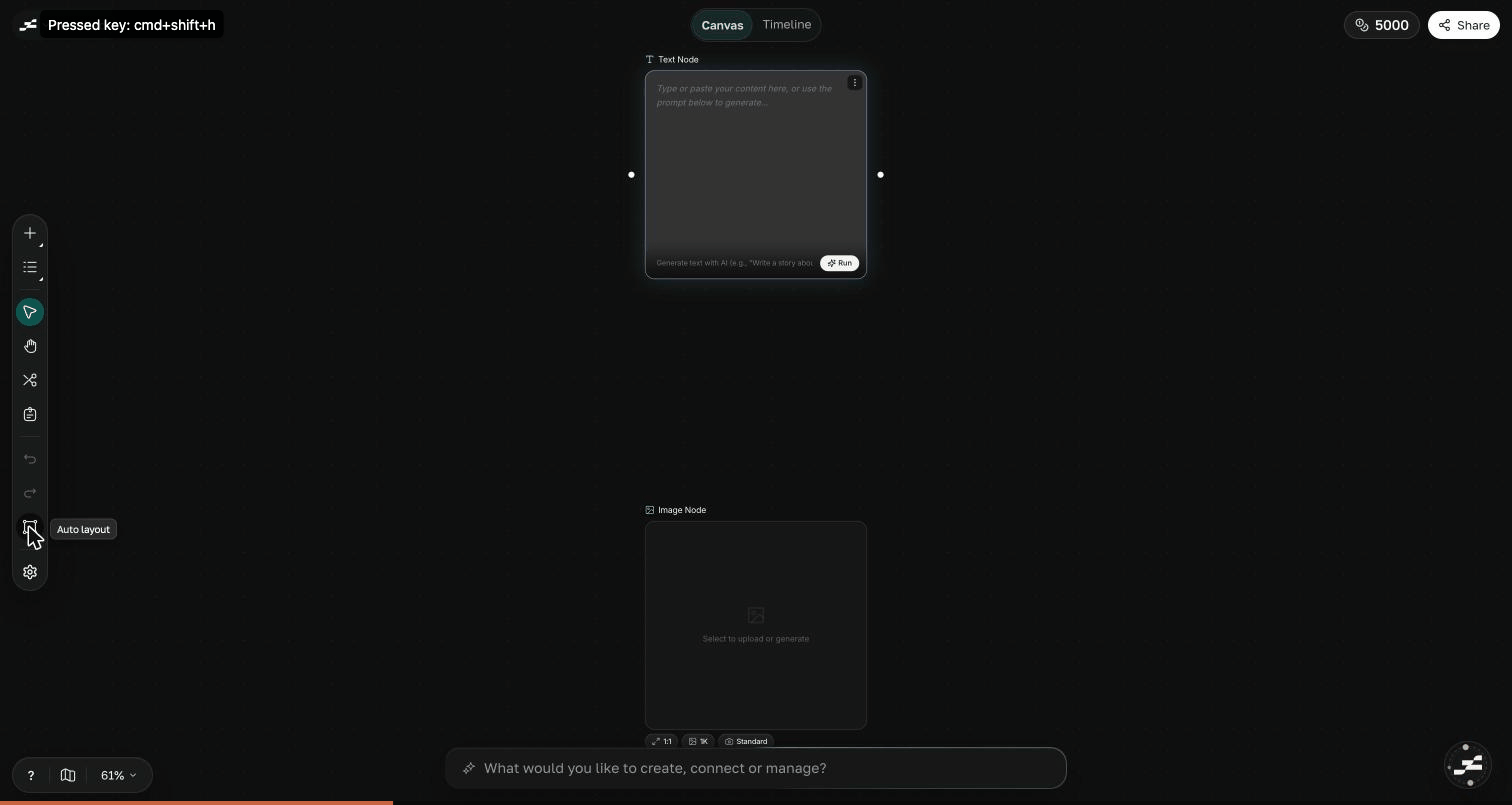
The **Canvas** is Flowy's infinite workspace: an open board where you drop nodes, wire them together, and generate text, images, video, audio, and more. Everything else in the editor — toolbar, inspector, AI chat — exists to serve what happens on this surface.
## The node surface
The infinite board fills your screen. Pan and zoom freely, spread work across as much space as you need, and connect a node's output to another node's input to pass results downstream. See [Navigation & Selection](/canvas/navigation) for every way to move around, and [Nodes](/canvas/nodes/overview) for what you can place here.
## Left toolbar
A vertical rail on the left edge holds the **Add a node** menu, the select, pan, cut, sticky note, and group tools, undo and redo, auto layout, and preferences. The [Canvas Toolbar](/canvas/toolbar) page walks it top to bottom.
## Node inspector
Select a single node and the inspector opens along the right edge with that node's full editable controls — model, settings, versions, and a credit estimate for the next run. The node itself keeps a compact summary so the board stays readable.
## Flowy AI dock
The pill at the bottom of the canvas — "Describe what you want to generate…" — expands into the Flowy AI composer. Above it, a row of [quick actions](/canvas/quick-actions) suggests one-click prompts that change with your selection. Submitting a prompt opens the full chat panel, where the assistant plans and builds on the canvas for you. Learn more in [AI Assistant](/canvas/ai/overview).
## Header
Across the top of the editor:
* **Project pill** (left) — the project name and menu; click the name to rename it.
* **Canvas / Studio pill** (center) — switches between the node canvas and the Studio timeline, where you refine a Composition and export video.
* **Search** (⌘K) — the command palette. Run project actions, switch modes, reopen recent projects, or type to jump to any node on the canvas by its title or prompt.
* **Generation activity** — a live chip that appears while generations run, with a count and per-item progress.
* **Credits** — your workspace credit balance.
## Bottom-left controls
A small pill in the bottom-left corner toggles the **minimap** and shows the current zoom level. Click the percentage for zoom presets: in, out, 100%, fit, and zoom to selection.
## Keep exploring
Meet every node type you can create and connect.
Upscale, inpaint, remove backgrounds, and more.
Plan and build the canvas with Flowy AI.
One-click prompts that adapt to your selection.
 ## The node surface
The infinite board fills your screen. Pan and zoom freely, spread work across as much space as you need, and connect a node's output to another node's input to pass results downstream. See [Navigation & Selection](/canvas/navigation) for every way to move around, and [Nodes](/canvas/nodes/overview) for what you can place here.
## Left toolbar
A vertical rail on the left edge holds the **Add a node** menu, the select, pan, cut, sticky note, and group tools, undo and redo, auto layout, and preferences. The [Canvas Toolbar](/canvas/toolbar) page walks it top to bottom.
## Node inspector
Select a single node and the inspector opens along the right edge with that node's full editable controls — model, settings, versions, and a credit estimate for the next run. The node itself keeps a compact summary so the board stays readable.
## Flowy AI dock
The pill at the bottom of the canvas — "Describe what you want to generate…" — expands into the Flowy AI composer. Above it, a row of [quick actions](/canvas/quick-actions) suggests one-click prompts that change with your selection. Submitting a prompt opens the full chat panel, where the assistant plans and builds on the canvas for you. Learn more in [AI Assistant](/canvas/ai/overview).
## Header
Across the top of the editor:
* **Project pill** (left) — the project name and menu; click the name to rename it.
* **Canvas / Studio pill** (center) — switches between the node canvas and the Studio timeline, where you refine a Composition and export video.
* **Search** (⌘ K) — the command palette. Run project actions, switch modes, reopen recent projects, or type to jump to any node on the canvas by its title or prompt.
* **Generation activity** — a live chip that appears while generations run, with a count and per-item progress.
* **Credits** — your workspace credit balance.
## Bottom-left controls
A small pill in the bottom-left corner toggles the **minimap** and shows the current zoom level. Click the percentage for zoom presets: in, out, 100%, fit, and zoom to selection.
## Keep exploring
## The node surface
The infinite board fills your screen. Pan and zoom freely, spread work across as much space as you need, and connect a node's output to another node's input to pass results downstream. See [Navigation & Selection](/canvas/navigation) for every way to move around, and [Nodes](/canvas/nodes/overview) for what you can place here.
## Left toolbar
A vertical rail on the left edge holds the **Add a node** menu, the select, pan, cut, sticky note, and group tools, undo and redo, auto layout, and preferences. The [Canvas Toolbar](/canvas/toolbar) page walks it top to bottom.
## Node inspector
Select a single node and the inspector opens along the right edge with that node's full editable controls — model, settings, versions, and a credit estimate for the next run. The node itself keeps a compact summary so the board stays readable.
## Flowy AI dock
The pill at the bottom of the canvas — "Describe what you want to generate…" — expands into the Flowy AI composer. Above it, a row of [quick actions](/canvas/quick-actions) suggests one-click prompts that change with your selection. Submitting a prompt opens the full chat panel, where the assistant plans and builds on the canvas for you. Learn more in [AI Assistant](/canvas/ai/overview).
## Header
Across the top of the editor:
* **Project pill** (left) — the project name and menu; click the name to rename it.
* **Canvas / Studio pill** (center) — switches between the node canvas and the Studio timeline, where you refine a Composition and export video.
* **Search** (⌘ K) — the command palette. Run project actions, switch modes, reopen recent projects, or type to jump to any node on the canvas by its title or prompt.
* **Generation activity** — a live chip that appears while generations run, with a count and per-item progress.
* **Credits** — your workspace credit balance.
## Bottom-left controls
A small pill in the bottom-left corner toggles the **minimap** and shows the current zoom level. Click the percentage for zoom presets: in, out, 100%, fit, and zoom to selection.
## Keep exploring