> ## Documentation Index
> Fetch the complete documentation index at: https://docs.tryflowy.ai/llms.txt
> Use this file to discover all available pages before exploring further.
# Image Node
> Generate and edit images with references, resolutions up to 4K, and photobooth mode.
export const VideoPlayer = ({src, poster, aspectRatio = "16 / 9", title, className = ""}) => {
const [playing, setPlaying] = useState(false);
if (playing) {
return
;
}
return ;
};
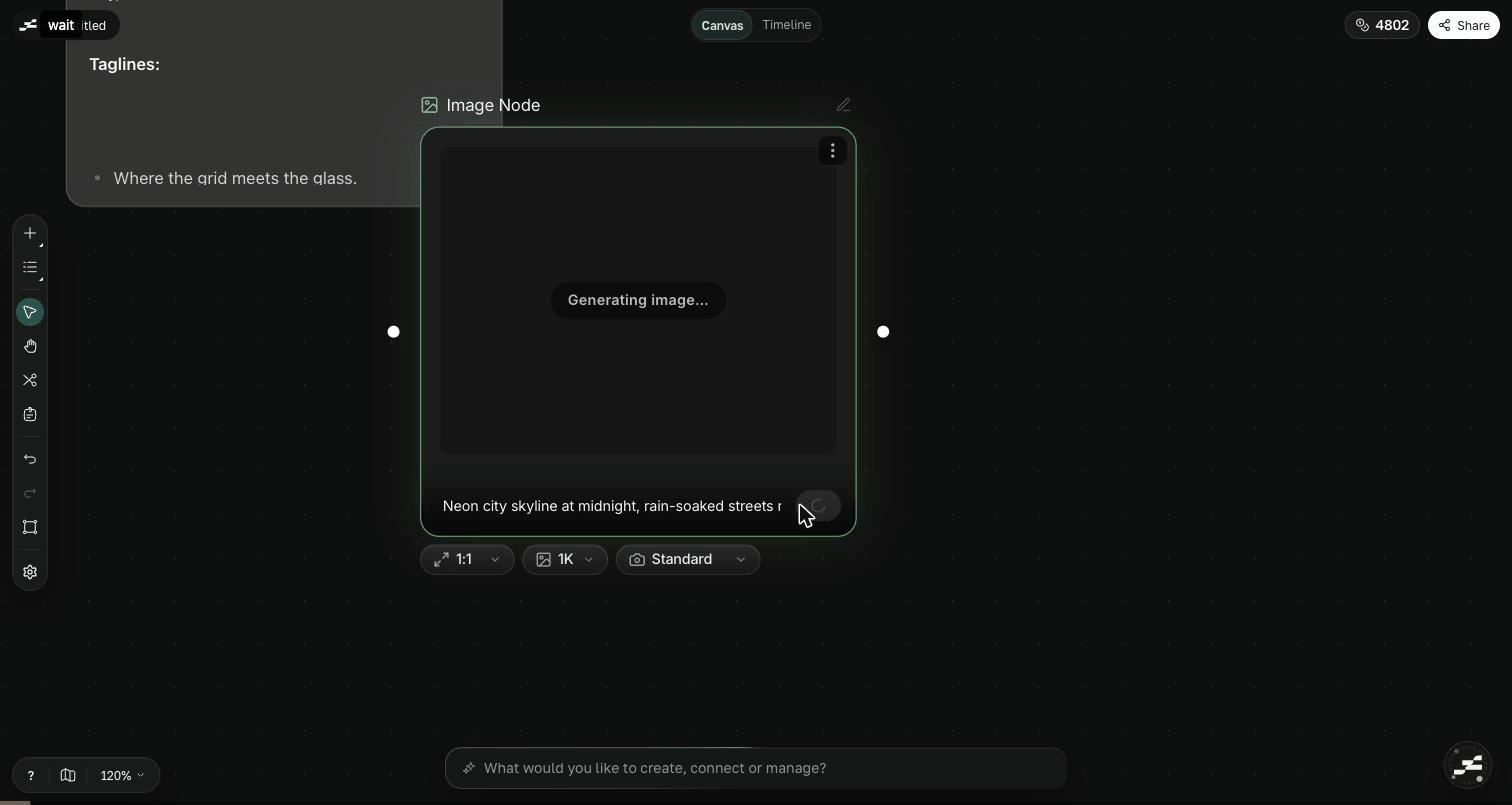
The Image node turns a prompt into a still image — and doubles as the anchor for references, edits, and every image tool on the canvas.
## Generate an image
Write a prompt in the node's prompt bar, pick your settings, and click **Run**. Name the subject, the setting, the visual style, and the lighting — specific prompts give specific results.
| Setting | Choices |
| ------------ | ----------------------------------------------------------------------- |
| Aspect ratio | `1:1`, `2:3`, `3:2`, `3:4`, `4:3`, `4:5`, `5:4`, `9:16`, `16:9`, `21:9` |
| Size | `1K`, `2K`, `4K` |
Reach for `1K` when you're drafting and iterating, and `4K` when you need a crisp final output with detail to spare.
## Reference images
Connect other Image nodes — generated or uploaded — as references, and describe in the prompt how to use them. References keep characters, products, and color palettes consistent across generations, and they're how you do image edits: connect the source image, then prompt the change you want.
## Modes
The Image node has two generation modes:
* **Standard** — the normal path: text-to-image, image edits, and reference-conditioned generation.
* **Photobooth** — connect a reference image of a product or subject, and the node generates a set of commercial photoshoot template variations from it. Add a text prompt to steer the direction. Photobooth needs the connected image first — a prompt alone won't run.
## Visual analysis
The [AI assistant](/canvas/ai/overview) can inspect an Image node's actual pixels — not only its prompt — so you can ask it to describe a result, critique a composition, or decide which of several variants to carry forward.
## Edit with image tools
Every Image node connects into the canvas [image tools](/canvas/image-tools/overview): upscale, inpaint, outpaint, remove background, change angle, separate layers, and a set of local adjustments like crop, levels, and blur. Chain them after a generation to refine the result without leaving the canvas.
 ## Reference images
Connect other Image nodes — generated or uploaded — as references, and describe in the prompt how to use them. References keep characters, products, and color palettes consistent across generations, and they're how you do image edits: connect the source image, then prompt the change you want.
## Modes
The Image node has two generation modes:
* **Standard** — the normal path: text-to-image, image edits, and reference-conditioned generation.
* **Photobooth** — connect a reference image of a product or subject, and the node generates a set of commercial photoshoot template variations from it. Add a text prompt to steer the direction. Photobooth needs the connected image first — a prompt alone won't run.
## Visual analysis
The [AI assistant](/canvas/ai/overview) can inspect an Image node's actual pixels — not only its prompt — so you can ask it to describe a result, critique a composition, or decide which of several variants to carry forward.
## Edit with image tools
Every Image node connects into the canvas [image tools](/canvas/image-tools/overview): upscale, inpaint, outpaint, remove background, change angle, separate layers, and a set of local adjustments like crop, levels, and blur. Chain them after a generation to refine the result without leaving the canvas.
## Reference images
Connect other Image nodes — generated or uploaded — as references, and describe in the prompt how to use them. References keep characters, products, and color palettes consistent across generations, and they're how you do image edits: connect the source image, then prompt the change you want.
## Modes
The Image node has two generation modes:
* **Standard** — the normal path: text-to-image, image edits, and reference-conditioned generation.
* **Photobooth** — connect a reference image of a product or subject, and the node generates a set of commercial photoshoot template variations from it. Add a text prompt to steer the direction. Photobooth needs the connected image first — a prompt alone won't run.
## Visual analysis
The [AI assistant](/canvas/ai/overview) can inspect an Image node's actual pixels — not only its prompt — so you can ask it to describe a result, critique a composition, or decide which of several variants to carry forward.
## Edit with image tools
Every Image node connects into the canvas [image tools](/canvas/image-tools/overview): upscale, inpaint, outpaint, remove background, change angle, separate layers, and a set of local adjustments like crop, levels, and blur. Chain them after a generation to refine the result without leaving the canvas.